Member guide
This guide is for SHPE @ CMU members and supporters who use shpecmu.com. A free account lets you choose which chapter newsletters you get and RSVP to events. Anyone 13 or older can create one.
Creating an account
How to join
- Go to shpecmu.com/join, or choose Join at the bottom of any page.
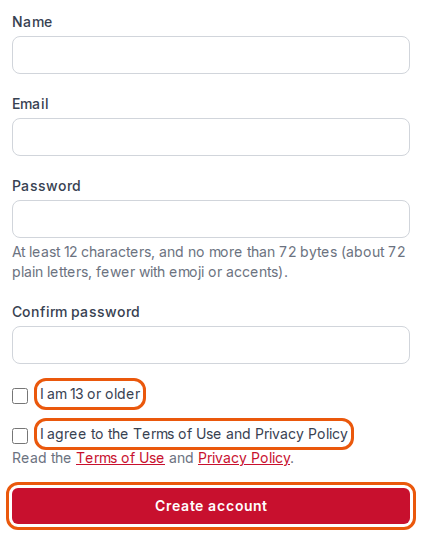
- Enter your Name, Email and a Password. The password needs at least 12 characters. Type it again in Confirm password.
- Tick I am 13 or older.
- Read the Terms of Use and Privacy Policy (linked under the box), then tick I agree to the Terms of Use and Privacy Policy.
- Choose Create account.
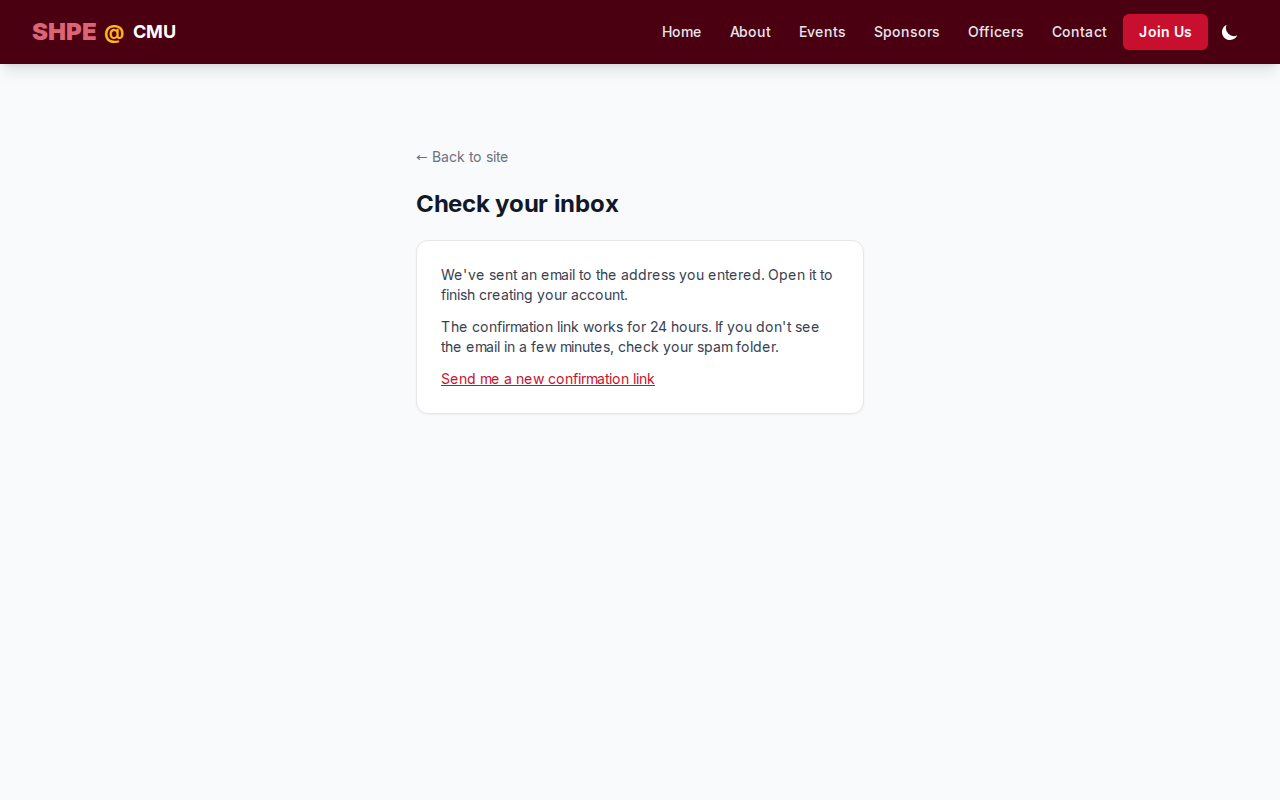
You see "Check your inbox". Your account isn't ready until you confirm your email.
How to confirm your email
- Open the email from SHPE @ CMU and choose the confirmation link. The link works for 24 hours.
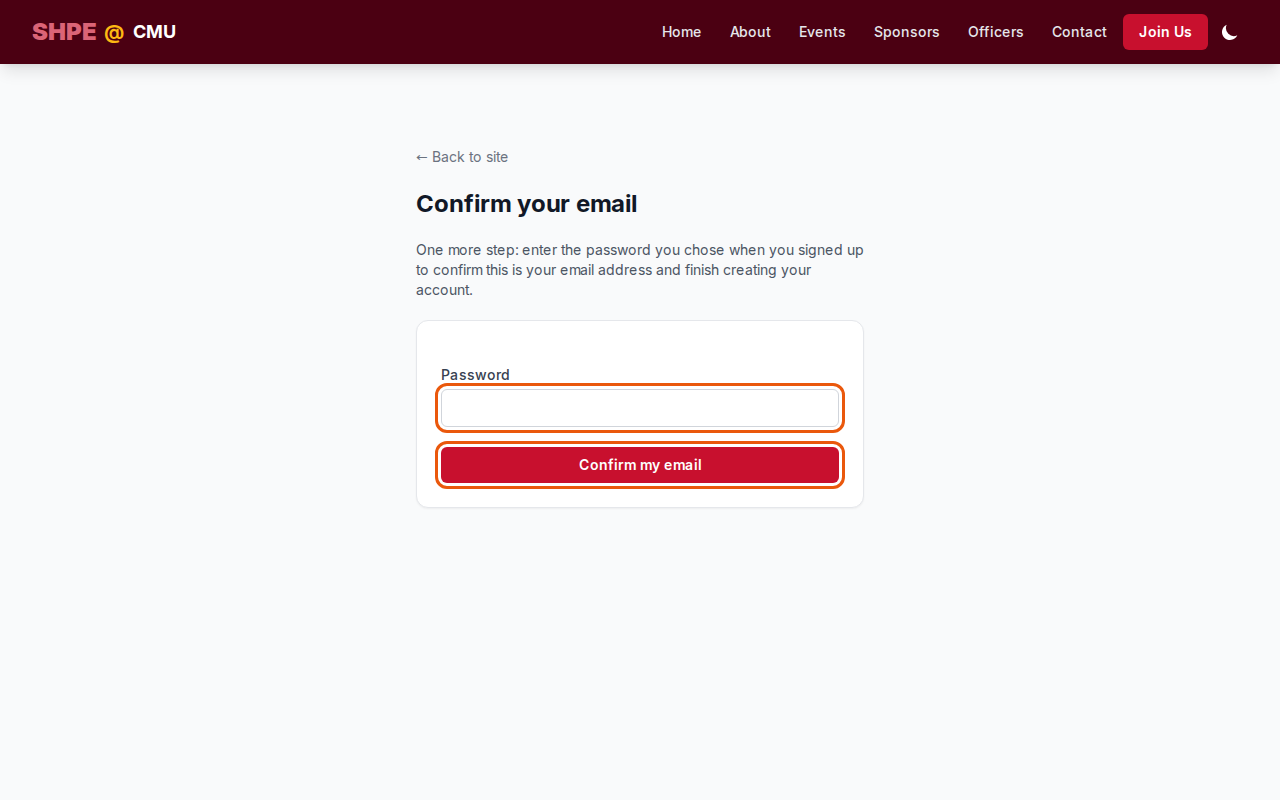
- On the Confirm your email page, enter the Password you chose when you signed up.
- Choose Confirm my email.
You are taken to the sign-in page with the message "Your email is confirmed — sign in to continue."
If you see "That password doesn't match the sign-up this link was sent for. If you signed up more than once, use the link from the email that followed the sign-up whose password you know, or sign up again.", the link is still unused: try again with the right password, or use another link.
If the email doesn't arrive
- Wait a few minutes and check your spam or junk folder.
- If it still isn't there, go to shpecmu.com/join/resend. The sign-in page also links to it as Didn't get the confirmation email?
- Enter your Email and choose Send a new link. It needs the password from the first sign-up for that email. Links we sent earlier keep working until they expire.
If you see "This link doesn't work", the link has expired, was already used, or was cut off when you copied it. Choose Send me a new confirmation link.
Accounts that are never confirmed are deleted after 7 days. You can simply join again.
Signing in and out
How to sign in
- Choose Sign in at the bottom of any page.
- Enter your Email and Password, then choose Sign in.
You land on Your account. While you are signed in, the top bar shows your name, an Account link and Sign out. On a phone, open the menu to see them.
If you see "Invalid email or password. Can't sign in? Reset your password.", check both and try again, or choose Reset your password (see If you forgot your password). After five wrong tries from the same place, you can't sign in from there for up to 15 minutes. Resetting your password lifts that wait straight away.
How to sign out
Choose Sign out in the top bar.
Passwords
If you forgot your password
- On the sign-in page, choose Forgot password?
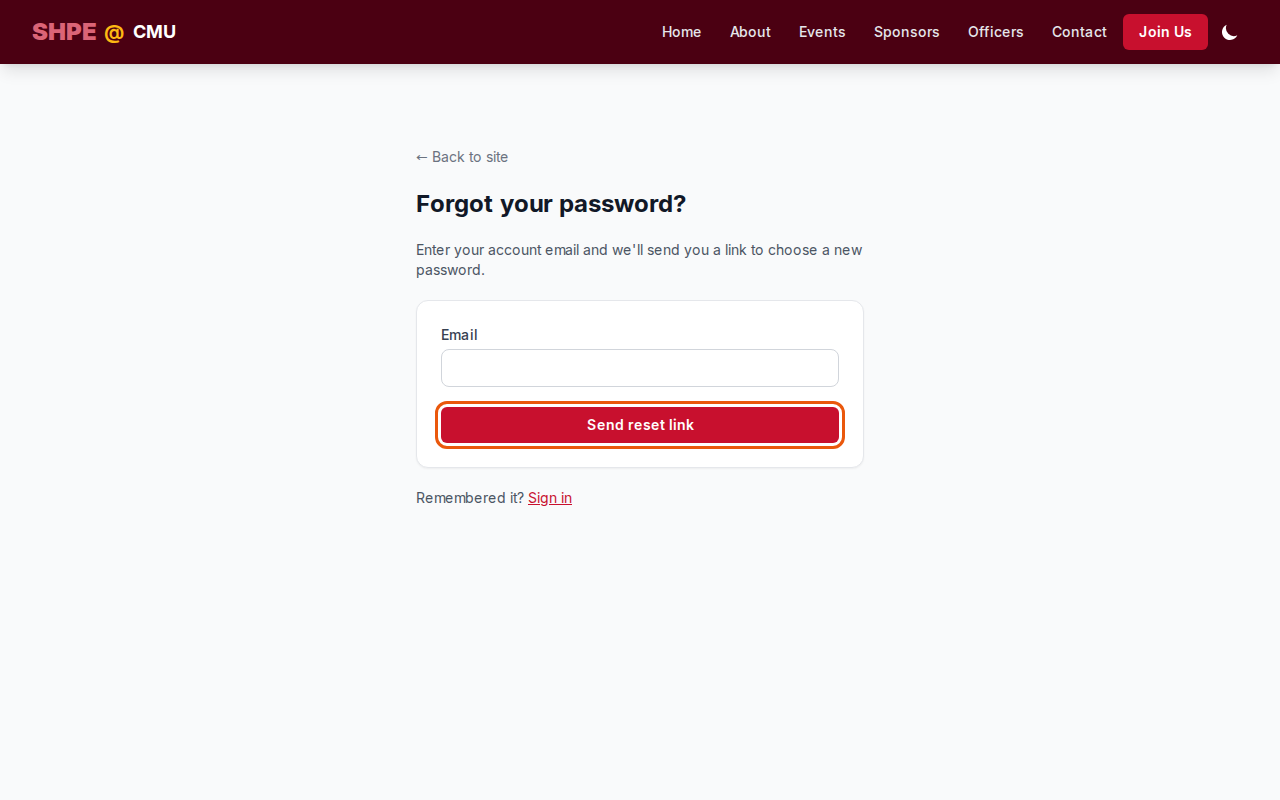
- Enter your Email and choose Send reset link.
- Open the email and choose the link. It works for 1 hour.
- Enter a New password, type it again in Confirm new password, and choose Save new password.
Choosing a new password signs you out on every other device.
How to change your password
- Sign in and go to Your account (choose Account in the top bar).
- Under Change password, enter your Current password, then a New password and Confirm new password.
- Choose Change password.
You stay signed in on this device and are signed out everywhere else.
Your account page
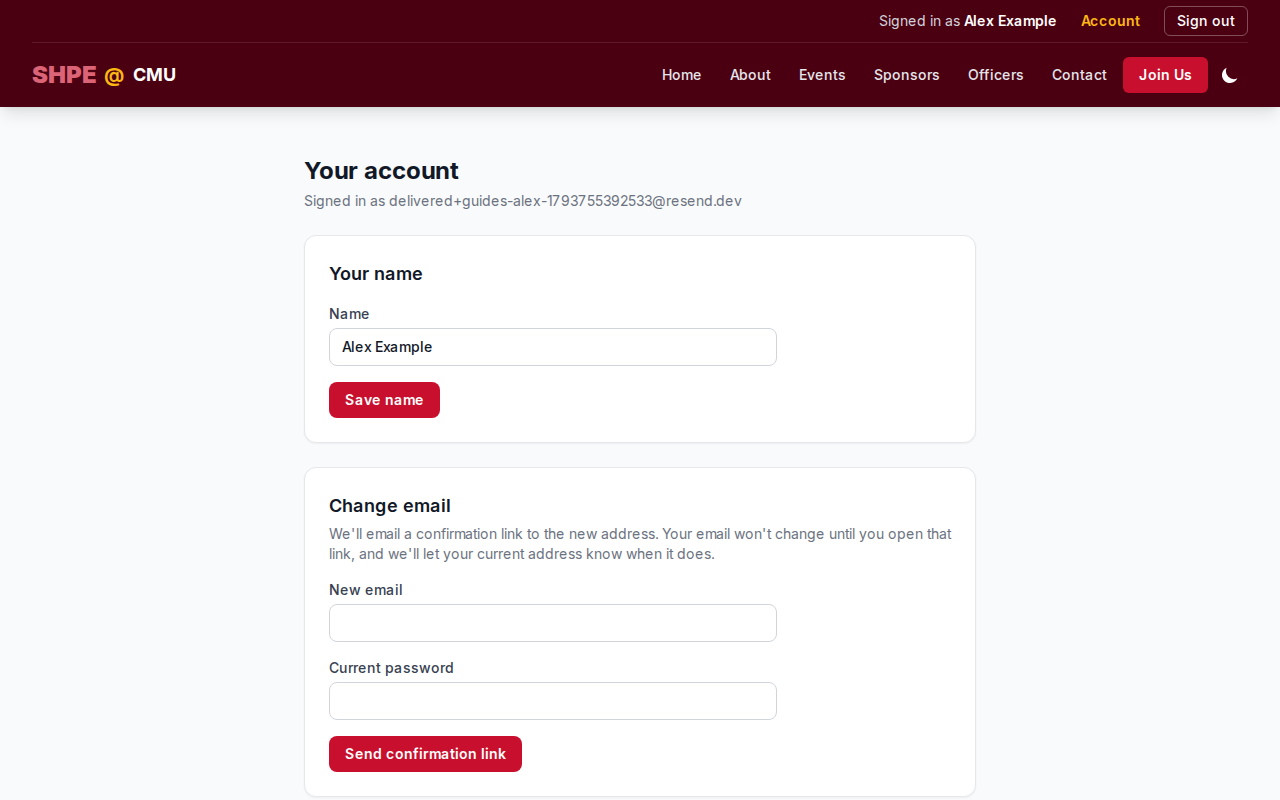
Choose Account in the top bar to open Your account. From there you can:
- change your name under Your name, then choose Save name;
- change your email address (see below);
- choose your newsletters (see below);
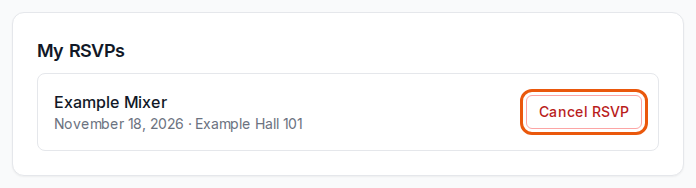
- see and cancel your RSVPs under My RSVPs;
- change your password;
- delete your account.
Changing your email address
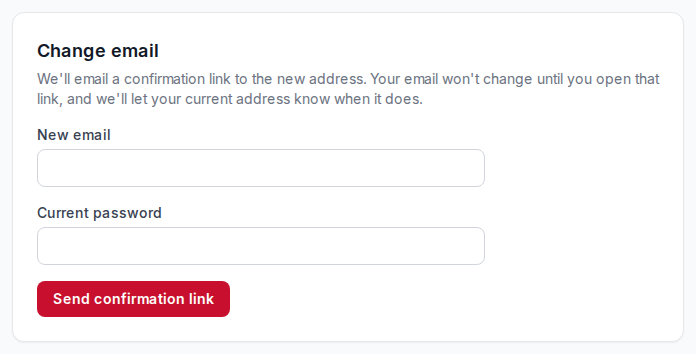
- Go to Your account and find Change email.
- Enter your New email and your Current password.
- Choose Send confirmation link.
- Open the email sent to your new address and choose the link. It works for 24 hours, once.
- The Confirm your new email page shows the new address. Enter your Current password and choose Confirm my new email.
Your email doesn't change until you finish step 5. You are then signed out everywhere, and the sign-in page says "Your email address was changed — sign in with your new email address." Your old address gets an email saying the address was changed.
Your RSVPs, newsletter choices and sponsor access stay with your account.
- Asking again sends a new link, and the older one stops working. Changing or resetting your password also cancels the link.
- If the new address already belongs to another account, confirming shows "This email address can't be used" and your email stays the same. An account at that address that was never confirmed doesn't block the change; it is deleted instead.
- If you didn't ask for the change, close the page. Nothing changes.
Newsletters
How to choose your newsletters
- Go to Your account.
- Under Newsletters, tick each topic you want to hear about in Email me about, and untick the ones you don't.
- Choose Save newsletter choices.
You see "Your newsletter choices were saved." You get only one copy of a newsletter, however many of its topics you chose.
How to unsubscribe
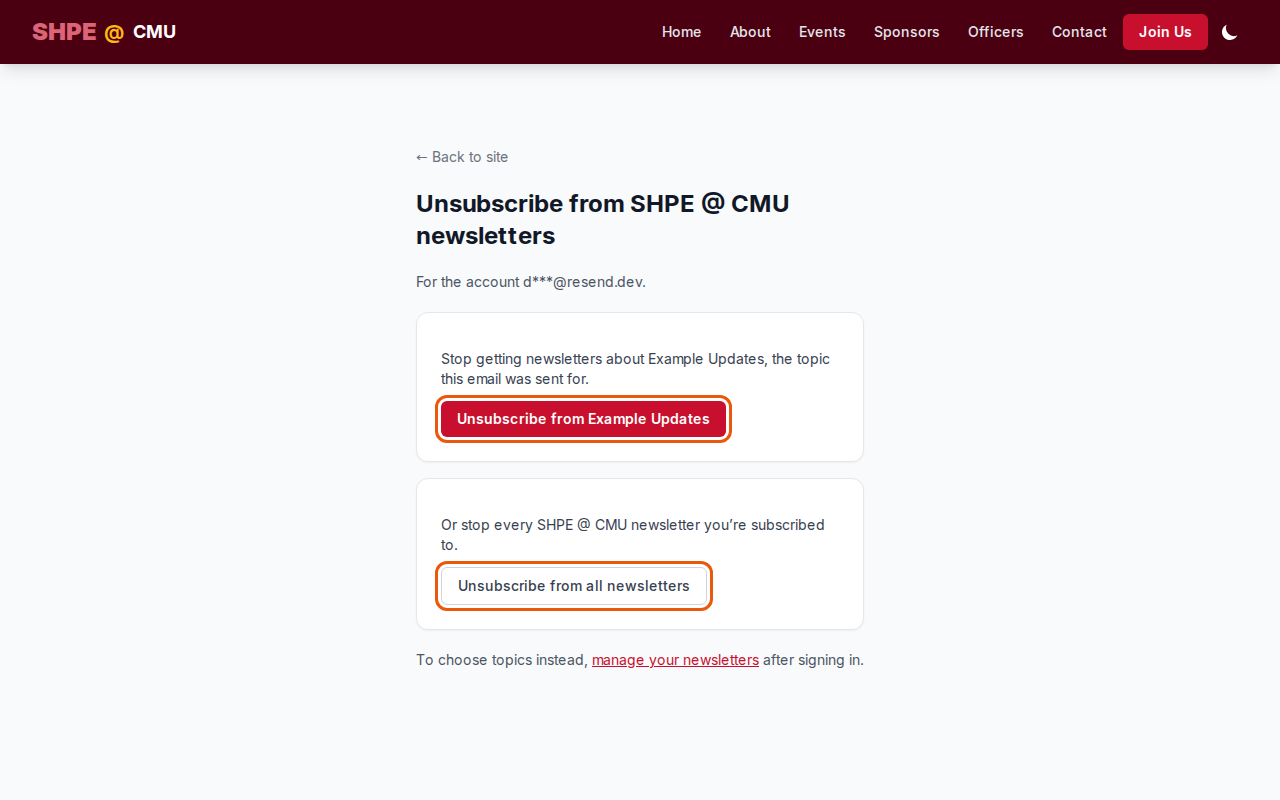
Every newsletter has an Unsubscribe link at the bottom.
- Choose Unsubscribe in the email. You don't need to sign in.
- On the page that opens, choose Unsubscribe from followed by the topic names to stop the topics this email was sent for. Or choose Unsubscribe from all newsletters to stop all of them.
Nothing changes until you press one of the buttons, and it takes effect right away. Your email app's own unsubscribe button works too: it stops the topics that newsletter was sent for.
You can also untick topics at any time under Newsletters on Your account, and tick them again to resubscribe.
Events and RSVPs
How to RSVP to an event
- Sign in, then open the Events page.
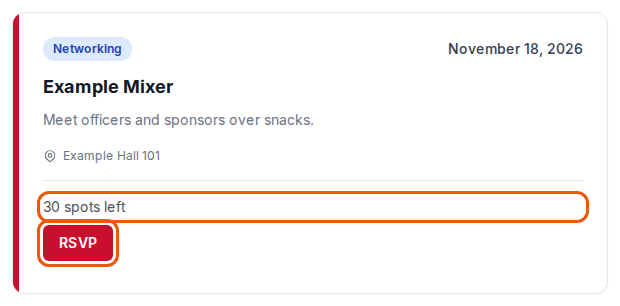
- Find the event under upcoming events and choose RSVP.
You see "You’re going. See you there!" If the event has a limit, it shows how many spots are left. A full event shows Full, and you can no longer RSVP to it. If you aren't signed in, the event shows Sign in to RSVP instead.
How to cancel an RSVP
Cancel before the event so someone else can take your place. Either:
- open the Events page and choose Cancel RSVP on the event; or
- go to Your account and choose Cancel RSVP next to the event under My RSVPs.
My RSVPs lists the upcoming events you are going to. You can't cancel once the event has happened.
Deleting your account
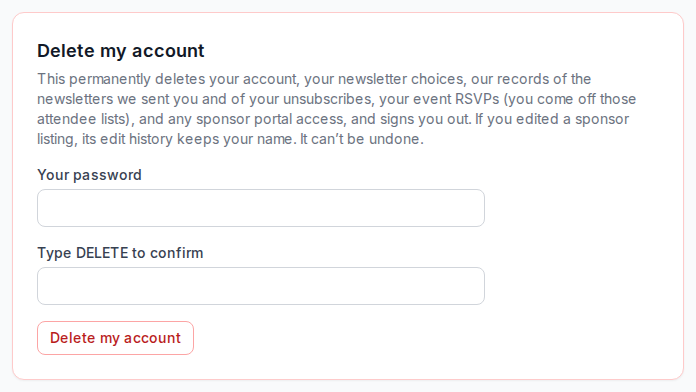
- Go to Your account and scroll to Delete my account.
- Enter Your password.
- Type DELETE in capital letters in Type DELETE to confirm.
- Choose Delete my account.
Your account, newsletter choices and RSVPs are deleted right away and you are signed out. This can't be undone. You can join again later with the same email.
Privacy and terms
The Privacy and Terms links at the bottom of every page open the chapter's Privacy Policy (shpecmu.com/privacy) and Terms of Use (shpecmu.com/terms). They explain what we collect, why, how long we keep it and your choices.
Getting help
For anything else, use the Contact page or email the address shown at the bottom of every page.