Sponsor guide
Thank you for supporting SHPE at Colorado Mesa University. This guide is for company contacts who use the sponsor portal on shpecmu.com. In the portal you can keep your company's listing up to date, RSVP to chapter events and download your receipts.
Getting access
Sponsor access is given by a chapter officer. It is linked to your own account, not shared by your company.
- Create a free account at shpecmu.com/join with your work email. The Member guide explains each step.
- Confirm your email: open the email from SHPE @ CMU, choose the link, enter your password and choose Confirm my email. Officers can't give access to an account that isn't confirmed.
- Tell your chapter contact the email address you signed up with.
- An officer links your account to your company's listing.
A listing can have several sponsor accounts, so colleagues can each have their own. Each account can be linked to only one listing.
Signing in
- Choose Sign in at the bottom of any page on shpecmu.com.
- Enter your Email and Password, then choose Sign in.
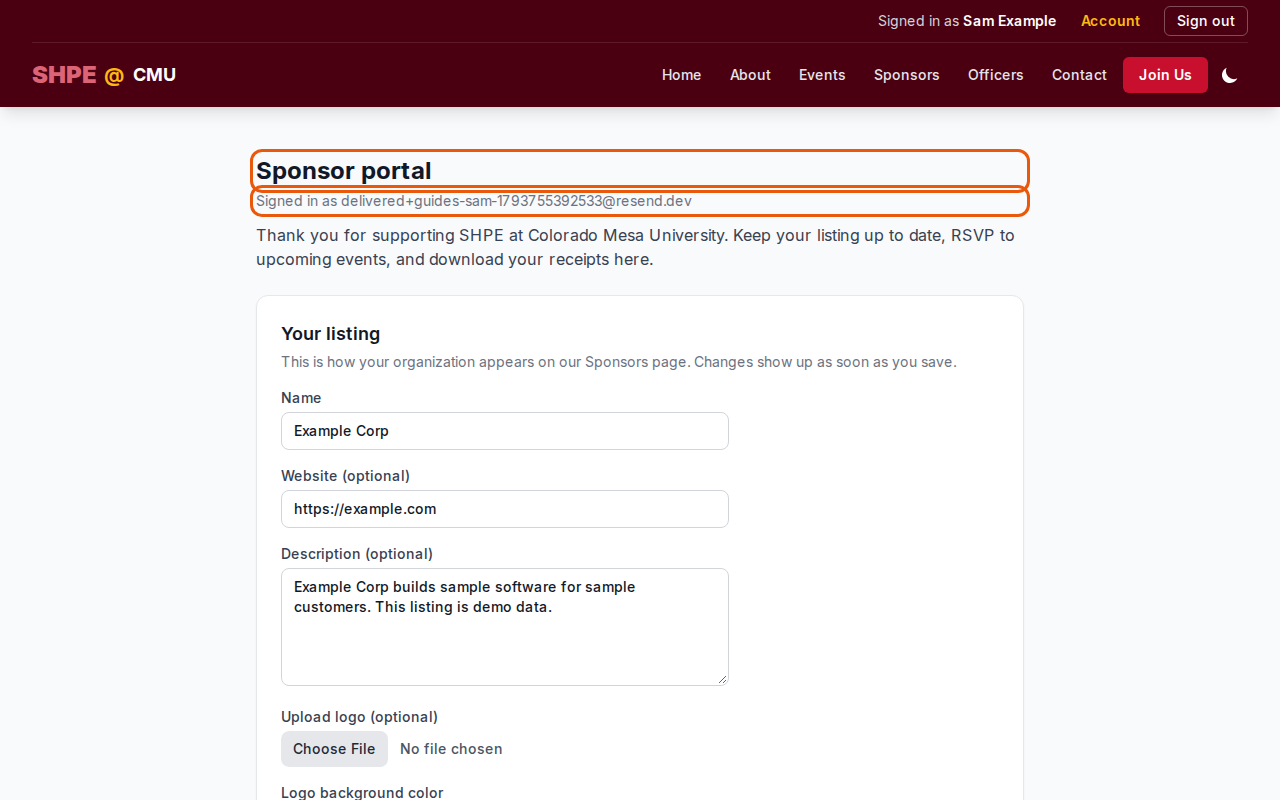
Once your access is set up, you land on the Sponsor portal. It shows "Signed in as" followed by your email. You can come back to it any time from Account in the top bar, then Sponsor portal.
Forgot your password? Choose Forgot password? on the sign-in page; see the Member guide.
Editing your listing
Your listing is how your company appears on the public Sponsors page. Under Your listing you can change:
- Name
- Website (optional): a full link that starts with http:// or https://
- Description (optional): up to 1000 characters
- the logo, with Upload logo (optional) or Replace logo
- Logo background color: the colour of the tile behind your logo
How to update your listing
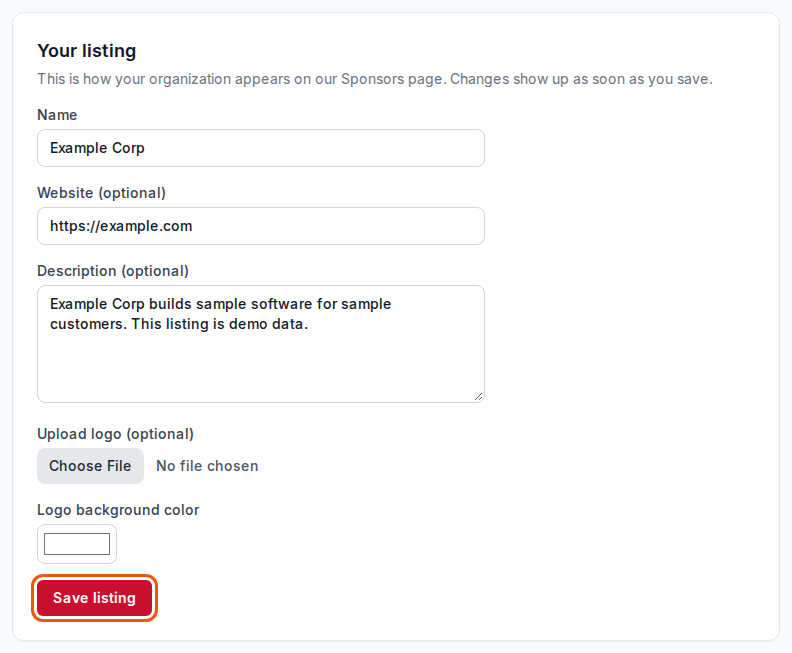
- Change the fields you want.
- To change the logo, choose Upload logo (optional) or Replace logo and pick an image file under 8 MB. In the Frame this logo window, pick a shape, then drag and use the Zoom and rotate controls until it looks right, and choose Use this framing.
- Choose Save listing.
You see "Your listing was saved." Changes appear on the public Sponsors page straight away.
Your tier and your position on the page are set by the chapter. Ask your chapter contact if either needs to change.
Every saved change is recorded with your name, the time and which fields changed. Chapter officers can see this history.
If someone else saved the listing while you were editing
A colleague or a chapter officer may edit the same listing at the same time. If you both change the same field, your save is refused so it can't overwrite theirs, and you see "Someone else changed this listing while you were editing, so nothing was saved." The notice lists each field you both changed with its saved version. The form still has what you typed: check it, and choose Save listing again to replace the saved version. Changes to different fields are both kept.
If the notice says "This page was out of date, so nothing was saved.", check the form and save again. If it says your logo change wasn't kept, choose your logo again before saving.
Events and RSVPs
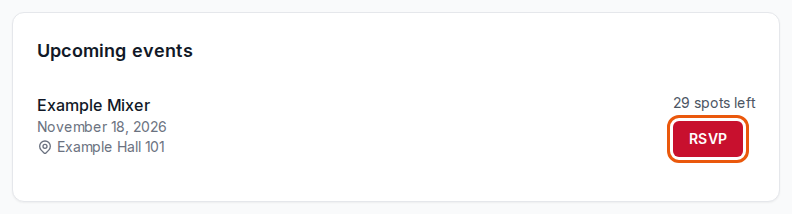
Upcoming events in the portal lists the chapter's upcoming events with their date, time and location. For an event that repeats every week, such as the chapter meeting, only the next week is listed. Once that week has passed, the week after it takes its place.
- Choose RSVP to say you're coming. You see "You’re going. See you there!"
- If an event has a limit, it shows how many spots are left. A full event shows Full.
- To cancel, choose Cancel RSVP on the event, or next to it under My RSVPs further down.
Please cancel if your plans change, so someone else can take your place.
Downloading receipts
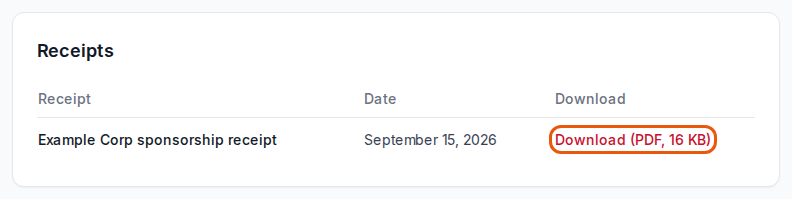
When the chapter shares a receipt with your company, it appears under Receipts, with its title and date.
- Choose Download next to the receipt. The link also shows the file size.
- The PDF is saved to your device.
Receipts are private. Only chapter officers and the accounts linked to your listing can download them.
If you don't have access
If signing in takes you to Your account instead of the Sponsor portal, and there is no Sponsor portal button there, your account isn't linked to a listing. This can happen when:
- your account was just created and an officer hasn't linked it yet;
- you signed up with a different email address from the one you gave the chapter;
- the chapter changed or removed your company's listing.
Contact the chapter through the Contact page, or at the email address shown at the bottom of every page. Give the email address you signed in with and your company's name.
If you see "Your sponsor access changed while you were editing, so nothing was saved. Check the form and try again.", an officer changed or removed your access while you were editing. Check the form and save again. If you are no longer on the Sponsor portal, contact the chapter.
To use a different work email, change it on Your account (see the Member guide). Your sponsor access stays linked to your account, so you don't need an officer to set it up again.
Privacy and terms
Your account follows the same Privacy Policy (shpecmu.com/privacy) and Terms of Use (shpecmu.com/terms) as every member account. The Privacy and Terms links are at the bottom of every page.